

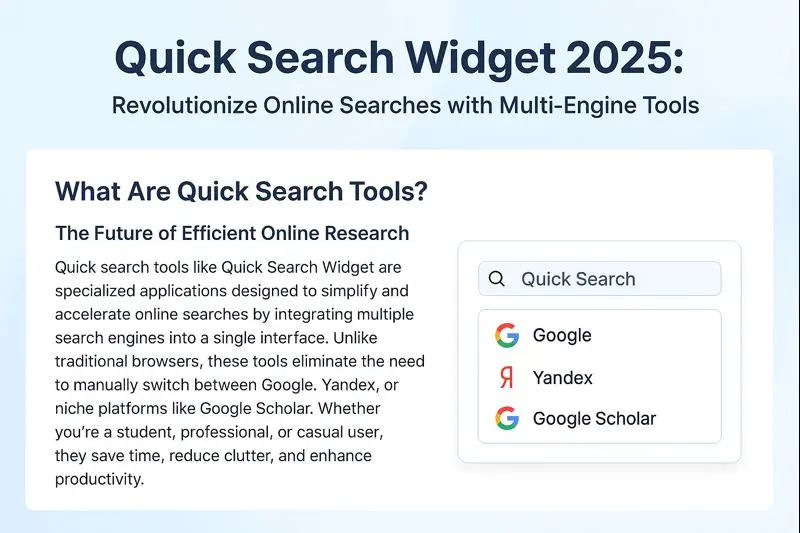
What Is Quick Search Widget?
Quick Search Widget is a powerful multi-engine search tool designed to simplify and speed up online research in 2025. Instead of switching between Google, Bing, Yandex, YouTube, or Google Scholar, this smart widget allows you to search across multiple platforms from one unified interface.
Whether you are a student, researcher, marketer, or everyday user, Quick Search Widget helps reduce tab clutter, save time, and improve productivity—making it an essential tool for modern web searches.
Why Multi-Search Tools Are Growing Rapidly in 2025
With the explosion of online content, traditional single-engine searches are no longer efficient. Fast search tools like Quick Search Widget are gaining popularity because they offer:
Key Benefits
- Time Efficiency: Search 10+ engines simultaneously with one query
- Customization: Prioritize engines you use most
- Cross-Device Sync: Access saved searches on mobile, tablet, and desktop
- Cleaner Workflow: Fewer tabs, better focus
📊 Studies show multi-search tools can reduce research time by up to 40%, especially for academic and professional users.
Top Features of Quick Search Widget
Quick Search Widget stands out thanks to its flexibility and performance:
🔍 Unified Search Bar
Enter your query once and view results from multiple engines side by side.
⚡ Keyboard Shortcuts
Launch instant searches using hotkeys like Ctrl + Shift + F.
🌍 Custom Search Engine Support
Add:
- Google Scholar (academic research)
- Yandex (regional searches)
- Amazon & YouTube (product and video research)
- DuckDuckGo (privacy-focused searches)
🔒 Privacy Controls
Disable tracking and enable privacy-first engines for safer browsing.
How to Download and Set Up Quick Search Widget (2025 Guide)
Step 1: Download the App
- Download only from the official website or app stores
- Available for iOS, Android, and desktop browsers
⚠️ Avoid third-party downloads to prevent malware.
Step 2: Initial Setup
- Choose default engines (Google, Wikipedia, YouTube, etc.)
- Enable cloud sync using your Google or Apple account
Step 3: Optimize Your Settings
- Enable Dark Mode for eye comfort
- Use Search Filters to exclude irrelevant domains
How to Add Custom Search Engines (Google Scholar & Yandex)
One of the strongest features of Quick Search Widget is engine customization.
Steps:
- Open Settings → Search Engines
- Click Add Custom Engine
- Paste the engine URL:
- Google Scholar:
https://scholar.google.com/scholar?q= - Yandex:
https://yandex.com/search/?text=
- Google Scholar:
- Save and test your query
💡 Tip: Add niche platforms like PubMed or ResearchGate for specialized research.
5 Advanced Tips to Boost Search Productivity
- Use Wildcards (
*)
Example: best * tools for SEO - Create Search Shortcuts
Assign “YS” for instant Yandex searches - Install Browser Extensions
Launch searches in one click - Export Search History
Analyze trends using CSV files - Enable Safe Search
Automatically block NSFW content
FAQs About Quick Search Widget
❓ Is Quick Search Widget free?
Yes. The free version covers essential features.
Premium plans (starting around $3/month) remove ads and add advanced customization.
❓ Can I add regional engines like Baidu or Naver?
Yes, any search engine with a query URL can be added.
❓ Is Quick Search Widget secure?
Reputable versions use encryption and do not store personal search data.
Why Professionals Rely on Multi-Search Tools in 2025
From marketers comparing SERPs to researchers scanning academic databases, Quick Search Widget enables:
- Faster decision-making
- Better focus and workflow
- Higher productivity under tight deadlines
It’s especially useful for:
- SEO specialists
- Students & academics
- Online shoppers
- Content creators
Final Verdict: Is Quick Search Widget Worth Using?
Absolutely.
Quick Search Widget is no longer just a convenience—it’s a necessity in 2025. Its ability to combine multiple search engines, customize workflows, and reduce wasted time makes it one of the best fast search tools available today.
🚀 If you want to research smarter, faster, and with fewer distractions, Quick Search Widget is the tool to try.